
The Hidden Cost of a Burning Laptop: Frustration, Lost Work, and Hardware Anxiety
You just sat down to finish a major video editing project or jump into a highly anticipated gaming session. Suddenly, the area right above your keyboard becomes uncomfortably hot to the touch. Your laptop fans start sounding like a jet engine preparing for takeoff.
Almost immediately, your screen stutters, your frame rate drops to a crawl, and everything becomes unresponsive. This is the painful reality of using a high-performance laptop that suffers from severe thermal issues.
You paid top dollar for a premium machine, expecting raw power and smooth performance. Instead, you are left dealing with a device that feels like a portable space heater. This constant overheating does not just ruin your current task. It actively destroys your workflow, breaks your focus, and makes you regret your expensive purchase.
When people try to find a real solution to this burning problem, they often run into a wall of terrible advice. Finding accurate, helpful information online can feel almost impossible.
Instead of getting real help, users often become victims of bad practices because:
- They buy useless accessories: Many users waste money on cheap cooling pads that actually push air against the laptop's natural exhaust system, making the heat much worse.
- They follow dangerous software hacks: Some online forums suggest aggressive registry edits or disabling built-in safety limits, which can permanently fry a motherboard.
- They guess the problem: Without proper diagnostic steps, people often blame computer viruses or outdated drivers, completely ignoring physical dust buildup inside the machine.
- They apply quick fixes that fail: People often blow air directly into un-opened vents without securing the internal fans, which ruins the fan bearings and causes total hardware failure.
This endless cycle of trial and error takes a massive toll on your mental peace. Using your computer should be a smooth, enjoyable experience. Instead, it turns into a highly stressful situation.
Here is how unresolved overheating destroys your confidence in your machine:
- Constant fear of data loss: You are always worried that your laptop will randomly shut down in the middle of saving a highly important document or project.
- Hardware damage anxiety: You constantly wonder if the extreme heat is silently melting your internal components or degrading your expensive battery.
- Embarrassment in professional settings: Sitting in a quiet office or a library while your laptop fans scream at maximum volume is incredibly distracting and awkward.
- Loss of trust in your tools: You stop using heavy applications entirely because you are terrified of triggering another system freeze.
You deserve a computer that works exactly as advertised. You should never have to compromise on performance just to keep temperatures down.
The good news is that diagnosing and fixing these thermal issues is completely within your control. You do not need a computer science degree to understand why your machine is choking.
By applying a few highly logical, science-based steps, you can bring your laptop back to its original, icy-cool glory. Let us walk through the exact process of identifying the root cause and applying permanent, safe fixes.
The Core Science of Laptop Cooling: Identifying and Eliminating the Heat
To permanently fix your overheating problems, we need to treat your laptop like a patient. A doctor would never prescribe medicine without first checking the symptoms.
Similarly, we must accurately diagnose whether your heat issue is caused by software overload, restricted physical airflow, or environmental factors. Let us break down the first three practical steps you can take today to cool down your system.
Step 1: Map the Heat Sources with Accurate Diagnostic Tools
Before you open up your laptop or buy any new equipment, you need to understand exactly what is generating the heat. Your laptop has two primary heat generators: the Central Processing Unit (CPU) and the Graphics Processing Unit (GPU).
When these chips work hard, they require more electrical power. According to the basic laws of thermodynamics, computing power always produces heat as a byproduct. High-performance laptops pack massive amounts of power into a tiny, confined space.
To find out if your system is actually overheating, you need to look at hard data. Do not just rely on how the keyboard feels to your fingers. Human skin is terrible at measuring actual hardware temperatures.
Instead, download a highly trusted, lightweight temperature monitoring program like HWMonitor or Core Temp. Run your laptop exactly as you normally would. Open your heavy software, start your game, or begin your rendering task.
Keep an eye on the maximum temperatures recorded by the software. If your CPU or GPU is constantly sitting above 90 degrees Celsius, your system is officially in the danger zone.
At these extreme temperatures, your computer initiates a safety protocol called thermal throttling. This is a built-in survival mechanism. Your processor intentionally slows itself down to prevent it from literally catching fire or melting the motherboard.
This explains why your high-end machine suddenly performs like a cheap, ten-year-old computer. Once you have this temperature data, check your Windows Task Manager.
Sometimes, a hidden background application is constantly eating 100% of your CPU power without you knowing. Think of this like leaving your car parked in the driveway with the engine constantly revving at maximum speed. Removing or uninstalling these rogue background apps is often the fastest way to drop your temperatures instantly.
Step 2: The Deep Clean and Safe Airflow Restoration
If your software checks out fine but your laptop is still boiling, you have a physical airflow problem. High-performance laptops rely on active cooling systems.
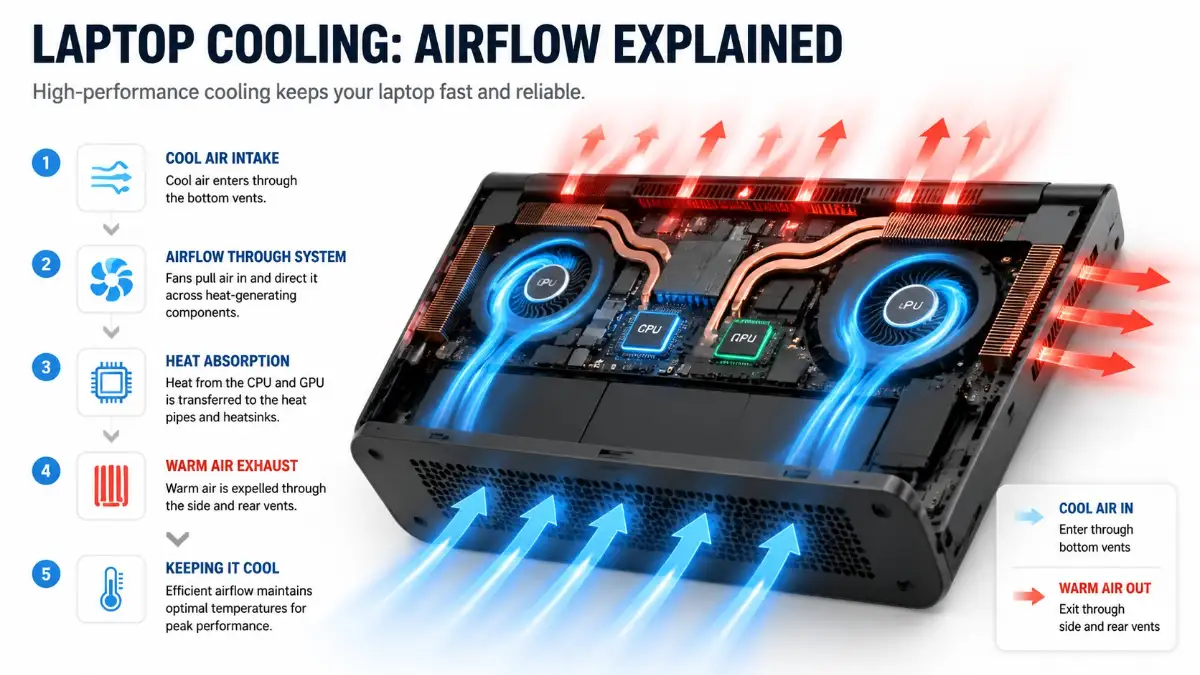
This means small fans pull cool air in from the outside, pass it over copper heat pipes, and push the hot air out through exhaust vents. Over time, these fans act like tiny vacuum cleaners.
They suck up dust, pet hair, dead skin cells, and carpet fibers from your environment. This debris slowly builds up inside the tiny gaps of your internal heat sinks.
Eventually, a thick blanket of dust forms inside your machine. Imagine trying to run a marathon while breathing through a heavy winter scarf. That is exactly how your laptop feels when the exhaust vents are clogged.
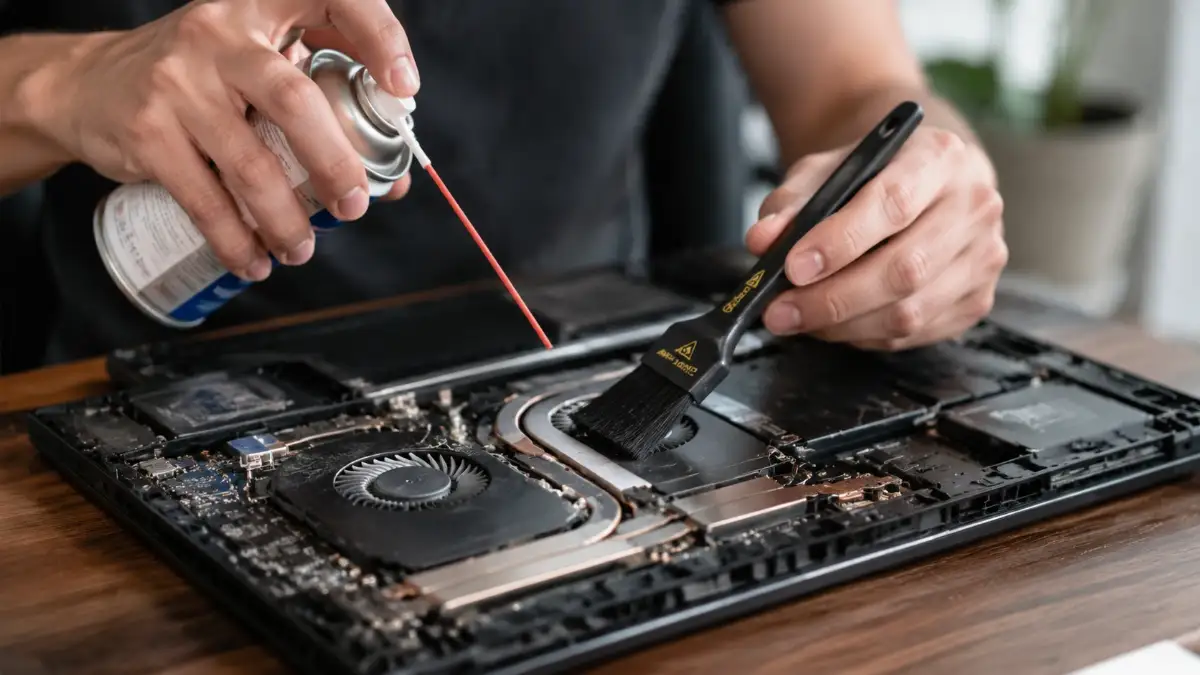
To fix this, you need to perform a careful physical cleaning. Turn off your laptop, unplug it from the wall, and place it on a clean, flat table. Using a small screwdriver, gently remove the bottom panel of your laptop.
Take a moment to look at the fans. You will likely see a shocking amount of gray dust blocking the small copper fins. This is the exact moment you need to be very careful.
Never take a can of compressed air and just blast it directly into the fan blades while they are spinning freely. Compressed air can spin these small plastic fans much faster than they were designed to go. This extreme speed can easily destroy the internal fan bearings or even generate a static electrical charge that fries your motherboard.
Instead, hold the fan blades completely still with your finger or a soft plastic toothpick. Once the fan is secured, use short, controlled bursts of compressed air to push the dust out of the copper heat sinks.
Use a clean, anti-static brush to gently sweep away any leftover debris from the fan blades. Once you clear this physical blockage, your laptop will finally be able to breathe again. You will likely notice a massive drop in fan noise and temperatures the moment you turn it back on.
Step 3: Optimize Your Ambient Environment and Surface Physics
Now that your internal hardware is clean and your software is optimized, we must look at where your laptop actually lives. The physical surface you place your laptop on plays a massive role in its thermal performance.
Many people love to use their high-performance laptops while sitting in bed or relaxing on a soft couch. This is one of the worst things you can possibly do to a computer.
Laptops usually pull cold air from the vents located on their bottom panel. When you place your machine on a soft blanket, a pillow, or your lap, the fabric completely seals off these intake vents.
Because no cold air can enter the system, the internal fans just end up circulating the same hot, trapped air over and over again. Within minutes, your system will overheat and start thermal throttling.
To fix this, you must respect the physics of airflow. Always place your high-performance laptop on a hard, flat surface like a wooden or glass desk.
If you want to significantly improve temperatures, simply raising the back of the laptop by an inch can work wonders. You can use a dedicated aluminum laptop stand for this purpose.
Elevating the machine creates a larger pocket of fresh air underneath the device. The cooling fans do not have to work nearly as hard to suck up cold air, which naturally lowers the fan RPM and reduces annoying noise.
You must also consider the ambient temperature of your room. A laptop cooling system can only cool internal parts using the air around it. If you are sitting in a hot, non-air-conditioned room during the middle of summer, your laptop will naturally run much hotter.
Try to keep your workspace cool and well-ventilated. Move your desk away from direct sunlight or heavy room heaters. By controlling the outside environment, you give your internal cooling system a massive advantage.
Combining strict software monitoring, regular internal dust cleaning, and proper desk placement will solve the majority of overheating issues. However, if you are still facing extreme temperatures after doing all of this, you might be dealing with degraded thermal materials.
Going Beyond the Basics: Advanced Solutions for Persistent Heat
Sometimes, basic cleaning and placing your laptop on a flat desk are simply not enough to stop severe thermal throttling. High-performance gaming and workstation laptops generate extreme levels of continuous energy. Over time, the internal cooling mechanisms experience heavy wear and tear.
If you are still facing loud, screaming fans and sudden frame drops, the problem lies much deeper inside the system. We need to take a highly professional approach to restore your machine’s physical heat management.
Do not worry, you do not need to be a certified technician to understand or apply these steps. By following these advanced hardware and software secrets, you can drastically drop your system temperatures. Let us explore the exact methods enthusiasts use to keep their machines running ice-cold under heavy loads.
Restoring Heat Transfer with High-Quality Thermal Paste
Your laptop processor and the copper heat sink are not perfectly flat objects. At a microscopic level, both metal surfaces are actually covered in tiny bumps and deep scratches.
When you place the copper heat sink directly onto the processor, these invisible gaps trap pockets of air. Because air is a terrible conductor of heat, your processor will overheat instantly.
To bridge these microscopic gaps, manufacturers use a thick, gray substance called thermal paste. This special compound transfers the intense heat from the computer chip directly into the cooling pipes.
However, factory-applied thermal paste eventually dries up and turns into a hard, crusty powder. Think of this exactly like running a car engine without any oil. The friction and heat build up quickly, causing massive performance drops.
Replacing this degraded paste is one of the most effective ways to save an overheating machine. First, you carefully remove the copper heat sink using a small, non-magnetic screwdriver.
Next, you must use high-percentage isopropyl alcohol and a soft microfiber cloth to gently wipe away the old, dry paste. The bare chips should look shiny and perfectly clean.
Finally, apply a tiny, pea-sized drop of premium, non-conductive thermal compound right in the center of the chip. Carefully reinstall the heat sink, tightening the screws in a diagonal pattern to spread the paste evenly.
This simple procedure can easily drop your maximum temperatures by 10 to 15 degrees Celsius. Your machine will finally be able to push all that trapped heat straight out of the exhaust vents.
The Magic of Safely Undervolting Your Processor
Hardware manufacturers want every single laptop they sell to be highly stable right out of the box. To guarantee this stability, they usually send way too much electrical voltage to the processor.
While this prevents random system crashes, it creates a massive amount of unnecessary heat. Imagine turning on a small desk lamp and feeding it the electrical power meant for an industrial floodlight.
The bulb might still work, but it will get dangerously hot to the touch. This is exactly what is happening inside your computer right now.
Undervolting is a highly popular, safe process where you slightly reduce this electrical feed. You are simply telling the motherboard to stop over-feeding the processor.
You can use highly trusted, free software tools like Throttle Stop or Intel Extreme Tuning Utility to do this. By carefully lowering the voltage in small steps, your laptop continues to run at its maximum advertised speed.
You do not lose a single drop of performance during heavy rendering tasks. However, because the chip is pulling less raw electricity, it generates significantly less heat.
This leads to a quiet system, cooler keys under your fingers, and even a longer battery life. It is truly a completely risk-free way to optimize your expensive hardware.
Taking Total Control with Custom Fan Curves
Most modern laptops use a highly reactive cooling strategy by default. They wait until the processor is literally burning before they finally decide to spin the fans up to full speed.
This lazy approach guarantees that you will experience painful thermal throttling during the first few minutes of heavy use. You can easily fix this poor design by creating a custom fan curve.
A custom fan curve is simply a set of rules you create to tell your fans exactly when to spin and how fast. You can use free management software to draw this curve on a simple graph.
For example, you can set the fans to stay completely silent while you are typing a document or browsing the web. But the moment your temperature crosses 60 degrees Celsius, you can program the fans to instantly jump to 70% speed.
Instead of waiting for an emergency, your cooling system becomes highly proactive. It starts pushing hot air out of the chassis before the heavy temperatures ever have a chance to build up.
You might hear a little bit of fan noise earlier than usual. But your machine will never reach dangerous, performance-killing temperatures during long gaming sessions.
Building Your Long-Term Hardware Maintenance Routine
Fixing your extreme heat issues once is highly rewarding, but keeping the system cool forever is the ultimate goal. You must build a simple, realistic maintenance habit to protect your investment.
Think of this routine just like taking your car in for regular oil changes and tire rotations. Every three months, grab your can of compressed air and gently blow out the side and back exhaust vents.
Every six months, take the time to open the bottom panel and physically brush out any heavy dust buildup on the fan blades. Every two years, seriously consider cleaning the chips and applying fresh thermal paste, especially if you push the machine hard daily.
By sticking to this very simple schedule, your laptop will always feel incredibly fast and responsive. You will completely eliminate hardware anxiety and enjoy a perfectly reliable machine.
Dangerous Cooling Myths That Can Instantly Destroy Your Hardware
When desperate users face extreme heat issues, they often panic and search the internet for quick, magical fixes. Unfortunately, online forums are filled with terrible, destructive advice.
Trying to rush the cooling process without understanding basic physics will not just make your system hotter. These common mistakes can permanently destroy your highly expensive motherboard and battery.
You must avoid these five massive traps at all costs to protect your hardware safely.
1. Vacuuming the keyboard and exhaust vents
Many people grab their regular living room floor vacuum to suck dust out from between the keyboard keys. This is a massive, highly dangerous mistake.
Standard household vacuums generate incredible amounts of static electricity as dust rushes through the plastic hose. A single invisible static shock from that vacuum nozzle can instantly kill sensitive microchips on your motherboard. Always stick to compressed air and anti-static brushes for cleaning electronic devices.
2. Applying liquid metal thermal paste without experience
Liquid metal is an extreme cooling compound that drops temperatures incredibly well. However, unlike standard thermal paste, liquid metal is highly electrically conductive.
If you accidentally squeeze out a tiny drop and it spills onto the motherboard circuits, it will instantly short-circuit the entire system. Your laptop will spark, shut off, and never turn on again. Unless you are a highly trained professional, you should always stick to standard, non-conductive thermal paste.
3. Buying heavy, restrictive plastic cooling pads
Many users waste money on thick plastic cooling pads that feature massive, slow-spinning fans. These generic fans usually push air directly upward, fighting against your laptop's natural exhaust flow.
This creates a massive air collision, trapping hot air right inside the chassis and making the internal temperatures much worse. Instead of a cheap fan pad, simply use a sturdy aluminum stand that raises the laptop and lets it breathe naturally.
4. Disabling safety limits in the system BIOS
Some online guides suggest disabling thermal throttling limits entirely in the hidden system settings. They do this to force the processor to run at maximum speed, completely ignoring the heat.
This is incredibly dangerous. These safety limits exist for a very specific reason. If you force the machine to ignore them, the extreme heat will literally melt the internal plastic components and possibly start a physical fire.
5. Ignoring a swollen, overheating battery
If your trackpad suddenly starts bulging upward or the laptop wobbles awkwardly on a flat desk, stop using it immediately. Extreme internal heat over a long period can cause standard lithium-ion batteries to physically expand and release toxic gases.
Pushing a swollen battery to keep working is a serious explosion hazard. You must shut the computer down, carefully remove the battery, and safely dispose of it at an electronics recycling center.
Reclaim Your Performance and Enjoy a Silent Machine
You now hold the exact knowledge needed to correctly diagnose, clean, and optimize your high-performance laptop. You no longer have to accept random system freezes, massive frame drops, or screaming fans as a normal part of your daily routine.
Taking proper care of your computer hardware is completely within your control, and it does not require an engineering degree. By checking your temperature data, clearing out physical dust blockages, and managing your software, you take total command of your machine.
You save massive amounts of money by fixing these issues yourself instead of paying premium prices at a local repair shop. Start small today by simply downloading a trusted temperature monitor and observing how your machine behaves under heavy stress.
Tomorrow, pick up a can of compressed air, open that bottom panel, and give those hard-working internal fans the deep clean they desperately need. Your laptop is a highly valuable investment, and treating it right guarantees it will serve you faithfully for a very long time.
Go ahead, open up that heavy video editing software or launch your favorite demanding game. Experience the smooth, uninterrupted power and absolute peace of mind that comes with a perfectly cooled system. You have got this!
